A State of North Dakota agency intends to issue payment. Completion of the payee profile is required to receive funds from the referring agency. Submitted information will undergo review and approval, which may take 1–2 business days. Once approved, this step will not need to be repeated.
For help with finding login information, completing the form, or verifying payment status, contact the referring agency. Contact details can be found in the emailed invitation sent by the agency.
Quick Help Guide
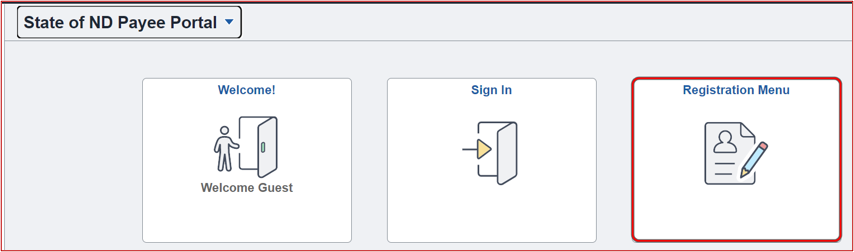
- From the State of ND Payee Portal, click "Registration Menu."
- Choose "Continue Payee Profile Setup for Approved Grant/Stipend" registration application.

- Find and open the email received from the agency program confirming your payment approval; it contains your login details and a unique link for payee setup.
If you need help finding the email with your login details, contact the referring agency program. - Click the dropdown and choose the correct “Program Code." This choice must match the grant or stipend program email received from the agency confirming your approved status.
- Fill in all fields with information from in the email.
- Click “Next.”
If the account information entered is found, you will proceed to the screen for the electronic Substitute W-9.
If the account information could not be found the below message will appear. You will need to verify what you entered or contact the referring agency for help.

Monies received will be reported to the Internal Revenue Service.
- Verify or edit your legal name to what is shown on your Social Security Card.
- Verify or edit your mailing address details.
- Enter your Social Security Number (XXX XX XXXX).
- Type your legal signature in the box provided.
- Verify or enter the mailing address where payment and correspondence are to be sent.
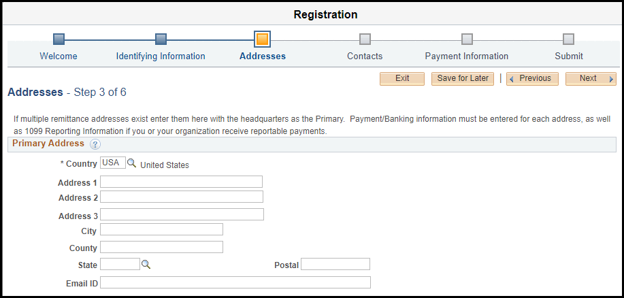
Enter your preferred payment method and payment details.
Payment/Banking Information
- The default payment method is ‘CHECK’. To keep this as the payment method, skip to “Set Payment Method for Address”.
- Click "Add Payment Method" to add an alternate payment method of direct deposit.
- Enter email address for notification of payment.
- Email Confirmation: Opt-in to receive payment advice for ACH/Direct Deposit.
- Enter banking information – U.S. based bank only
- Personal Account: Check box if this is for a personal bank account.
Set Payment Method for Address
- Click the drop down and choose the payment method option available.
- Click "Next."
A default contact profile has been created using the information provided on the grant/stipend application. You may view the details by clicking on the name of the contact.
Click "Next" if there are no changes.
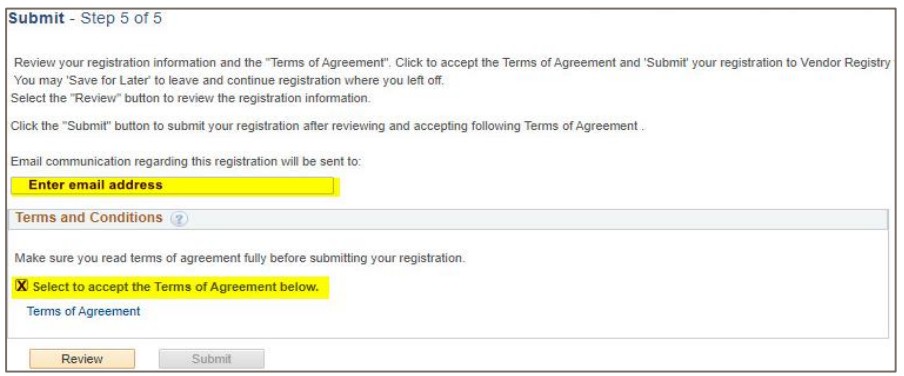
- Click "Review" to verify your application for accuracy.
- Verify the email address for status updates on this registration.
- Click "Terms of Agreement" and read the terms of submitting the application.
- Click "Select to accept the Terms of Agreement below" check box.
- Click "Submit."
OMB Vendor Registry Office helps North Dakota state agencies set up payee profiles in the state's payment system but does not send payments or work directly with payees. If you have system questions or need help with an application or payment status, please contact the agency that runs the program as they are best equipped with the knowledge to assist.